Lesson 4: Notion for Beginners
Writing and Editing Basics in Notion: A Comprehensive Guide
Welcome to our guide on how to write and edit in Notion. Notion is a sophisticated writing tool that allows you to easily add and organize different types of content, making it an essential platform for managing information and enhancing productivity. Whether you’re capturing quick notes, drafting detailed documents, or creating comprehensive project plans, Notion’s flexible and user-friendly interface has got you covered. Let’s dive into the basics of writing and editing in Notion, exploring its powerful features and how you can utilize them to streamline your workflow.
Getting Started: Creating and Formatting Text
When you have something on your mind, Notion makes it incredibly easy to capture it. Here’s how to get started:
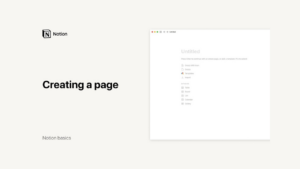
Creating a New Page:
To start writing, simply create a new page in Notion. This can be done by clicking on the “New Page” button or using the keyboard shortcut “Ctrl + N” (Cmd + N on Mac).
Writing Text:
Once on your new page, just start typing. Notion treats every piece of content as a block, which can be a simple text block or more complex elements like databases, images, or embedded content.
Formatting Text:
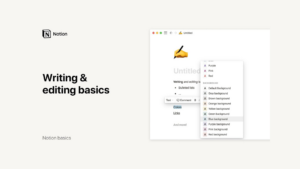
Highlight any text to bring up the formatting menu. This menu provides options to turn your text into different types of blocks such as headings, a to-do list, a toggle list, a code snippet, a quote, or a call-out box.
Common formatting options include bold (Ctrl/Cmd + B), italics (Ctrl/Cmd + I), and strikethrough (Ctrl/Cmd + Shift + S). Additionally, you can use code notation (Ctrl/Cmd + E) for inline code segments.
Advanced Text Formatting and Hyperlinks
Enhancing your text with advanced formatting options can make your documents more engaging and easier to navigate:
Headings and Subheadings:
Turn your text into headings or subheadings to organize content logically. This can be done through the formatting menu or by using the slash command (“/”) followed by the type of heading you want (e.g., “/h1” for a heading 1).
Hyperlinks:
To insert a hyperlink, highlight the text and click on the “Link” option in the formatting menu, then paste the URL. Alternatively, you can paste a URL directly over a selected piece of text to create a link.
Text Color and Background:
Customize the appearance of your text by changing its color or adding a background color. Select your preferred color from the list in the formatting menu.
Using Blocks for Structured Content
Notion’s block-based system allows for a high degree of flexibility and organization. Here are some key features:
Blocks Overview:
Each type of content you add to Notion, such as text, images, videos, and more, is a block. You can transform a text block into different formats like lists, quotes, and headers.
Adding Blocks:
Use the slash command (“/”) to quickly bring up the full menu of block options. For example, typing “/todo” will create a to-do list, while “/image” will allow you to add an image block.
You can also add databases like tables, boards, galleries, lists, or calendars by selecting the appropriate option from the block menu.
Managing Blocks:
Hover over any block to reveal the six-dot icon, which serves as a handle for dragging the block around the page. This icon also provides options to delete, duplicate, transform, or move the block to another page.
Page and Block Management
Efficiently managing your pages and blocks is crucial for maintaining an organized workspace. Here’s how:
Page-Wide Formatting:
Access the three-dot menu at the top right of your page to customize typography, text size, and page width. These settings apply to the entire page, helping you maintain consistency.
Drag and Drop Functionality:
Use the drag and drop feature to rearrange blocks on your page. Click and hold the six-dot icon next to a block, then drag it to the desired location. This feature is particularly useful for creating columns and organizing content side by side.
To create columns, drag a block next to another block until a blue vertical line appears, indicating the new column’s position.
Leveraging Advanced Features
Notion’s advanced features provide additional layers of functionality that can enhance your writing and editing experience:
Comments and Mentions:
Add comments to any block by selecting the “Comment” option from the six-dot menu. This is useful for adding notes, feedback, or instructions.
Mention team members by typing “@” followed by their name, connecting your page to specific people or dates. This is particularly useful for collaborative projects.
Inline Databases:
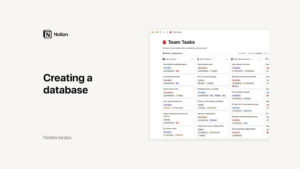
Create inline databases such as tables or lists directly within your pages. This allows you to manage data and content seamlessly in the same workspace.
Use the slash command to insert a database and customize it to fit your needs. For example, you can create a table to track project tasks or a calendar to schedule events.
Conclusion
Notion’s robust writing and editing tools make it an invaluable platform for individuals and teams looking to enhance their productivity and organization. By understanding the basics of text formatting, block management, and advanced features, you can leverage Notion to create comprehensive, well-structured documents. Whether you’re taking notes, drafting detailed plans, or managing complex projects, Notion provides the flexibility and functionality to support your needs. Start exploring Notion today and unlock the full potential of your writing and editing capabilities.
Credits: this video is available on the YouTube channel Notion.