How to Recover Deleted Whatsapp Messages
See our guide to recover WhatsApp messages.
WhatsApp has become an essential communication tool for billions of people around the world, allowing for easy messaging, voice calls, and media sharing.
However, sometimes messages are accidentally deleted, which can cause panic if those messages contained important information or cherished memories.
Fortunately, there are several methods to recover deleted WhatsApp messages, whether they were recently deleted or lost during a device switch.
In this guide, we’ll explore various techniques to help you restore your deleted messages on both Android and iOS devices.
YOU MAY LIKE THIS:
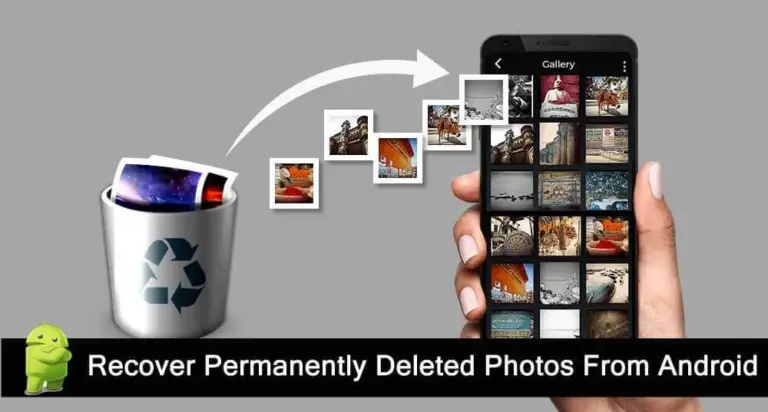
How to Recover Lost Photos from Your Phone
You will continue on our website
How to Recover Deleted WhatsApp Messages: A Comprehensive Guide
WhatsApp has become an essential communication tool for millions of users worldwide. With its ease of use and accessibility, it’s no wonder that it holds a significant amount of our personal and professional conversations. But what happens when you accidentally delete important messages? Fortunately, there are several ways to recover deleted WhatsApp messages, whether through backups or using specialized recovery tools. This guide will walk you through the various methods to restore your lost messages and media files, ensuring that your critical data is not permanently lost.
Recovering Messages via WhatsApp Backup
One of the most reliable methods to recover deleted messages on WhatsApp is by restoring from a backup. WhatsApp automatically backs up your chats daily to your phone’s internal storage, and you can also configure it to back up to cloud services like Google Drive for Android or iCloud for iOS. Restoring a backup is often the easiest way to recover deleted messages, as long as the backup includes the messages you want to retrieve.
How to Restore from Google Drive Backup (Android)
1. Check the Last Backup
Before attempting to restore your messages, it’s crucial to ensure that the backup includes the messages you want to recover. To check this:
- Open WhatsApp and go to Settings > Chats > Chat backup.
- Check the date and time of the last backup. If the backup was made before the messages were deleted, you should be able to restore them.
2. Uninstall and Reinstall WhatsApp
Once you’ve confirmed that the backup contains the messages you want:
- Uninstall WhatsApp from your Android device.
- Reinstall WhatsApp from the Google Play Store.
- After reinstalling, open WhatsApp and verify your phone number.
- Follow the prompts to restore your chat history from the Google Drive backup.
How to Restore from iCloud Backup (iOS)
1. Check the Last Backup
Similar to Android, iOS users need to verify the last backup before restoring:
- Open WhatsApp and navigate to Settings > Chats > Chat Backup.
- Check the last backup date and time to ensure it includes the deleted messages.
2. Uninstall and Reinstall WhatsApp
After verifying the backup:
- Uninstall WhatsApp from your iPhone.
- Reinstall WhatsApp from the App Store.
- After reinstalling, open WhatsApp and verify your phone number.
- Follow the prompts to restore your chat history from iCloud.
Note: This method will only restore messages that were present at the time of the backup. Any messages sent or received after the last backup will not be restored.
Recovering Messages without Backup
If you haven’t set up backups or your backup is outdated, you still have options to recover deleted messages. This involves accessing local backups (for Android users) or using data recovery software for both iOS and Android devices.
Recovering from Local Backups (Android)
- Access Local Backup
WhatsApp stores local backups on your device’s internal storage. To access these backups:
Use a file manager app and navigate to WhatsApp > Databases.
- Find the Correct Backup File
In the Databases folder, you’ll find files named in the format “msgstore-YYYY-MM-DD.1.db.crypt12.” These files represent backups from different dates. Choose a backup file from a date before you deleted the messages.
- Restore the Backup
- Rename the selected backup file to “msgstore.db.crypt12”.
- Uninstall and reinstall WhatsApp.
- Follow the prompts to restore the chat history from the local backup.
This method allows you to recover messages even if you don’t have a cloud backup, though it requires a bit more manual effort.
Using Data Recovery Software (iOS and Android)
If local backups aren’t an option, or if you’re an iOS user, data recovery software can be a viable solution.
- Choose a Data Recovery Tool
Several tools are available for recovering deleted WhatsApp messages, including Dr.Fone, Tenorshare UltData, and iMobie PhoneRescue. These tools are designed to scan your device for deleted data and recover it.
- Connect Your Device
Download and install the data recovery software on your computer.
Connect your phone to your computer via USB.
- Scan and Recover
Follow the software’s instructions to scan your device. This process may take some time, depending on the size of your data.
Once the scan is complete, the software will display recoverable messages.
Select the messages you want to restore and follow the prompts to recover them.
Note: Data recovery software may require a purchase for full functionality, and there is no guarantee of recovering all messages. However, these tools can be very effective, especially if the deleted messages were recent.
Recovering Media Files
In addition to text messages, WhatsApp also stores media files like photos, videos, and documents, which can also be accidentally deleted. Fortunately, there are several ways to recover these files.
Recovering from Backup
Media files are included in WhatsApp backups. If you restore from a backup (as described above), the associated media files will also be restored along with your messages.
Using File Manager (Android)
If you haven’t deleted the media files from your device, they may still be stored in your phone’s internal storage. To locate them:
- Open a file manager app and navigate to WhatsApp > Media.
- This folder contains subfolders for images, videos, documents, etc.
You can browse these folders to find and recover your deleted media files.
Cloud Services and Gallery Apps
Many users have their media files automatically backed up to cloud services like Google Photos or iCloud. If you’ve set up auto-sync for your media, check these services to see if your deleted files are still available.
For example, if you’ve enabled Google Photos backup, deleted images may still be available in your Google Photos account, even if they’ve been removed from WhatsApp.
Preventing Future Losses
To avoid the stress of losing important WhatsApp messages and media files, consider implementing the following preventive measures:
- Enable Regular Backups
Set up daily, weekly, or monthly backups depending on your needs. For Android, use Google Drive; for iOS, use iCloud. Regular backups ensure that you always have a recent copy of your chats and media files, minimizing the risk of permanent data loss.
- Use Third-Party Backup Solutions
Consider third-party apps that offer additional backup options, allowing you to store backups on different cloud services or even offline. These solutions can provide an extra layer of security for your data.
- Export Chats
For especially important conversations, use WhatsApp’s “Export Chat” feature. This feature allows you to save a copy of the chat in .txt format, with or without media. You can access this option under Chat Info > Export Chat.
- Regularly Update WhatsApp
Ensure that your WhatsApp app is up-to-date with the latest version. Updates often include bug fixes and improvements in data handling, which can help prevent data loss.
Recovering deleted WhatsApp messages can be a daunting task, but with the right methods, it’s often possible to restore your important conversations and media files. Whether you’re using cloud backups, local backups, or specialized recovery software, each method has its strengths and limitations. The key to safeguarding your WhatsApp data lies in regular backups and proactive data management. By following the steps outlined in this guide, you can ensure that your WhatsApp data is secure, and recover it whenever necessary, giving you peace of mind in your daily communications.