Lesson 2: Notion for Beginners
Notion Training: The Basics
Welcome to Notion! This all-in-one productivity tool is revolutionizing the way individuals and teams organize, manage, and execute their projects. Whether you’re looking to streamline your personal life, manage a team, or create a shared knowledge base, Notion provides a flexible and powerful platform to do it all. In this guide, we’ll walk you through the basics of using Notion, covering essential aspects such as writing and editing content, setting up your workspace, and collaborating effectively with others. By the end of this guide, you’ll be well-equipped to leverage Notion’s full potential, whether you’re working solo or with a team.
Writing and Editing Content in Notion
Notion’s strength lies in its simplicity and versatility when it comes to content creation. Whether you’re drafting a simple note or building a complex project management system, Notion’s user-friendly interface makes it easy to get started. Here’s how to navigate the content creation process:
Adding Text
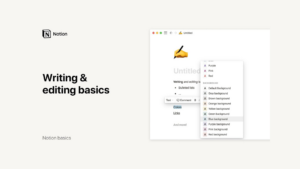
Adding text in Notion is as intuitive as it gets. Simply place your cursor anywhere on the page and start typing. Notion’s text editor functions similarly to most document editors, but with a cleaner interface that only displays formatting options when you need them. This keeps the workspace uncluttered and focused.
For basic text formatting, highlight the text you want to format, and a toolbar will appear with options for bold, italic, underline, and more. Notion also supports keyboard shortcuts—like Command+B for bold or Command+I for italics—which can significantly speed up your writing process.
Understanding Blocks
Notion operates on a block-based system, where every piece of content you add—whether it’s text, a to-do list, an image, or a table—is a “block.” This modular approach allows for great flexibility in organizing and rearranging content on the fly.
To add a block, you can either hover your cursor over the left margin of the page to reveal a plus sign or simply type a forward slash (/) to bring up the block menu. From here, you can choose from a variety of block types, including text, headings, bullet points, checkboxes, and more. This feature is particularly powerful when building out complex pages that require different types of content, such as a project dashboard with tasks, notes, and embedded media.
Formatting and Organizing
Notion’s flexibility extends to how you format and organize your content. You can drag and drop blocks to reorder them, create columns for a more structured layout, or even nest blocks within each other for deeper levels of organization. The six-dot icon that appears next to each block when you hover over it serves as a handle for easy dragging and repositioning.
For advanced formatting, you can access additional options by clicking on the six-dot icon. These options include turning a block into another type (for example, turning text into a heading), duplicating blocks, adding comments, changing text color, and much more. This makes Notion not just a tool for writing, but also a platform for designing your content in a way that best suits your needs.
Setting Up Your Workspace
A well-organized workspace in Notion is key to maximizing productivity. Whether you’re setting up Notion for personal use or managing a team, creating a logical and easy-to-navigate workspace is essential. Here’s how to set it up:
Sidebar Navigation
The sidebar in Notion is your control center, providing access to all your pages and sections. It’s divided into two main areas: Workspace and Private. The Workspace section contains pages that are shared with all members of your team, making it ideal for collaborative projects. On the other hand, the Private section houses your personal pages, accessible only to you.
Navigating the sidebar is straightforward. You can collapse and expand sections to keep your view clean and focused. If you find that your sidebar is becoming cluttered with too many pages, consider reorganizing your content into folders or subpages to keep everything tidy.
Nesting Pages
One of Notion’s most powerful features is its ability to nest pages within pages, allowing for deep layers of organization. Instead of using traditional folders, Notion uses pages that can contain other pages. This method is highly intuitive and ensures that all related content is grouped together logically.
For example, you might have a top-level page for a project, with nested pages for tasks, meeting notes, and related documents. To nest a page, simply drag it into another page in the sidebar. This hierarchical structure is especially useful for managing complex projects or maintaining a large knowledge base.
Creating Top-Level Pages
When organizing your workspace, it’s important to keep the number of top-level pages in your sidebar to a minimum. This helps maintain a clean and focused workspace. Top-level pages should be broad categories, such as a Company Wiki, Project Roadmap, or Personal Dashboard. Each of these can then contain multiple nested pages that are more specific.
This approach not only keeps your workspace organized but also makes it easier to navigate. When you or your team members need to find something, it’s clear where to look, reducing time spent searching for information.
Using Favorites
If there are certain pages that you access frequently, you can add them to your Favorites for quick access. Simply right-click on a page and select “Add to Favorites.” This creates a Favorites section at the top of your sidebar, ensuring that your most important pages are always within reach.
As your projects evolve, you might find that some pages are no longer as relevant. You can easily remove them from your Favorites to keep this section focused on your current priorities.
Quick Find and Search
Notion’s Quick Find feature is a powerful tool for quickly locating pages, even in a large and complex workspace. By typing a keyword or phrase into the Quick Find search bar, you can instantly pull up pages, databases, or even specific blocks of content.
The search functionality also allows you to filter results by criteria such as the date a page was created, who created it, and more. This makes it easy to locate content, even if you can’t remember exactly where you placed it.
Templates and Imports
Notion offers a wide range of templates that can be accessed directly from your sidebar. These templates cover everything from project management to personal productivity and can save you time by providing pre-built structures that you can customize to fit your needs.
In addition to using templates, Notion also allows you to import content from other apps. This is particularly useful if you’re migrating from another platform and want to bring all your existing notes and documents into Notion. By centralizing all your information in one place, you can streamline your workflow and reduce the need to switch between different tools.
Collaborating on Notion
Collaboration is one of Notion’s strongest features, making it easy for teams to work together, share information, and keep projects moving forward. Here’s how to make the most of Notion’s collaborative tools:
Sharing Information
Notion allows you to invite team members to your workspace, giving them access to all shared content. This is ideal for teams that need to work on shared projects, as it ensures that everyone has access to the same information.
You can also invite external users as guests to specific pages, allowing you to share content without giving them access to your entire workspace. This is particularly useful for working with clients or contractors who only need access to certain parts of your Notion setup.
Commenting and Mentioning
Notion makes it easy to have conversations within the context of your work. You can add comments to specific blocks or entire pages, making it clear what feedback or questions pertain to. To do this, simply click on the six-dot icon next to a block and select “Comment,” or highlight a specific word or phrase and choose the “Comment” option.
You can also mention team members by typing “@” followed by their name. This sends them a notification, drawing their attention to specific comments, tasks, or pages. This feature is incredibly useful for asynchronous communication, allowing team members to stay in the loop regardless of time zones or schedules.
Discussions and Notifications
Notion supports page-level discussions, which are perfect for ongoing conversations about a particular project or topic. To start a discussion, click “Add discussion” at the top of any page. You can mention people, set reminders, and keep the conversation going in one centralized place.
Notifications are another critical component of Notion’s collaborative capabilities. The All Updates menu in your sidebar collects all mentions, comments, and changes across your workspace. This ensures you never miss an important update and allows you to respond or resolve comments directly from the sidebar.
Asynchronous Communication
One of the challenges of modern work is coordinating across different time zones and schedules. Notion’s support for asynchronous communication makes it easy to continue conversations and keep projects moving forward, even when team members aren’t online at the same time.
By using comments, mentions, and discussions, you can ensure that everyone stays informed and that tasks are completed without the need for constant real-time communication.
Notion is more than just a note-taking app; it’s a versatile platform that combines project management, collaboration, and organization into one powerful tool. Whether you’re using it to manage personal projects or working with a team, understanding how to write and edit content, set up your workspace, and collaborate effectively can transform the way you work.
By mastering the basics outlined in this guide, you’ll be well on your way to leveraging Notion to its full potential. From organizing your digital life to streamlining team workflows, Notion offers the flexibility and functionality you need to stay productive and focused. So start exploring Notion today, and discover how this powerful tool can help you achieve your goals and take control of your work and life.
Credits: this video is available on the YouTube channel Notion.